The import command of the winget tool imports a JSON file of apps to install. The import command combined with the export command allows you to batch install applications on your PC.
The import command is often used to share your developer environment or build up your PC image with your favorite apps.
Usage
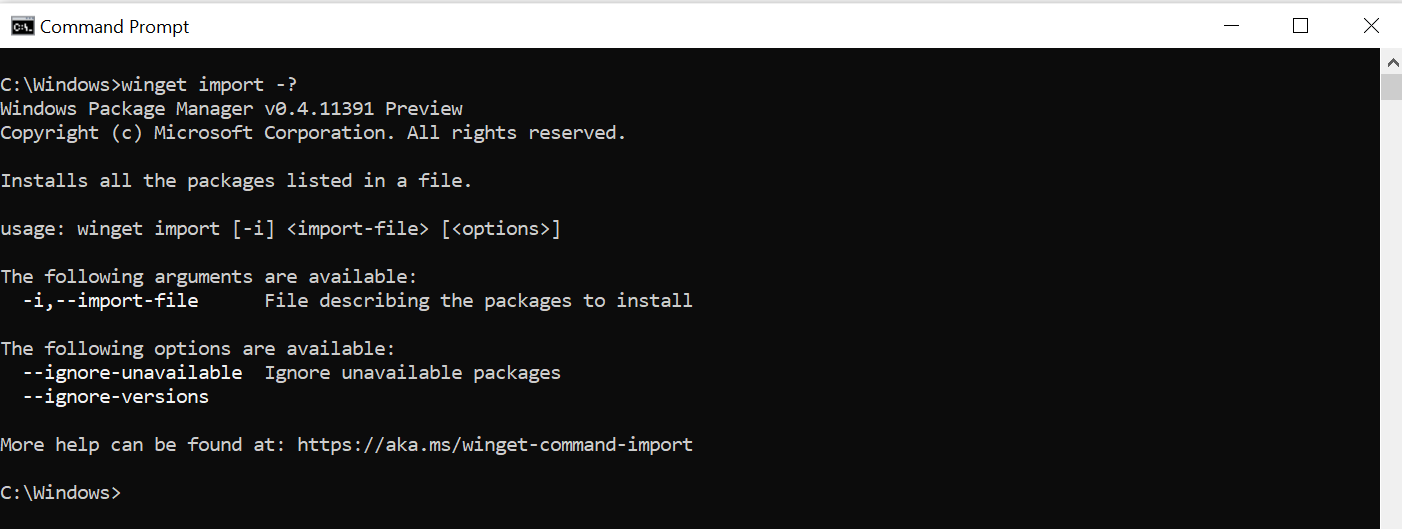
winget import [-i] <import-file> [<options>]
Arguments
The following arguments are available.
| Argument | Description |
|---|---|
| -i,–import-file | JSON file describing the packages to install. |
Options
The options allow you to customize the import experience to meet your needs.
| Option | Description |
|---|---|
| –ignore-unavailable | Suppresses errors if the app requested is unavailable. |
| –ignore-versions | Ignores versions specified in the JSON file and installs the latest available version. |
| –accept-package-agreements | Used to accept the license agreement, and avoid the prompt. |
| –accept-source-agreements | Used to accept the source license agreement, and avoid the prompt. |
| –verbose-logs | Used to override the logging setting and create a verbose log. |
JSON Schema
The driving force behind the import command is the JSON file. You can find the schema for the JSON file here.
The JSON file includes the following hierarchy.
| Entry | Description |
|---|---|
| Sources | The sources application manifests come from. |
| Packages | The collection of packages to install. |
| PackageIdentifier | The Windows Package Manager package identifier used to specify the package. |
| Version | [optional] The specific version of the package to install. |
Importing files
When the Windows Package Manager imports the JSON file, it attempts to install the specified applications in a serial fashion. If the application is not available or the application is already installed, it will notify the user of that case.
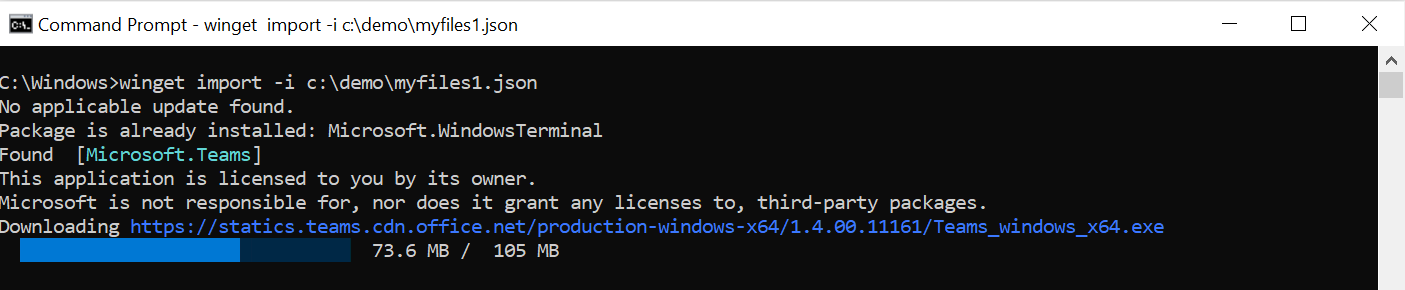
In the previous example, the Microsoft.WindowsTerminal was already installed. Therefore the import command skipped the installation.